In the rapidly evolving landscape of non-linear editing (NLE) software, a delicate friction exists between two distinct user bases: novice creators who require intuitive, automated assistance, and seasoned professionals who demand absolute, granular control over their workspaces. For years, this tension was epitomized by a highly polarizing behavior in Adobe Premiere Pro—the automatic creation of timeline tracks when source clips contained more audio or video channels than the active sequence.
What developers designed as a safety net to prevent beginners from "losing" audio tracks quickly became a source of operational frustration for veteran editors. Every time a multi-channel clip was dropped or edited onto a sequence, Premiere Pro would override the editor’s established layout, generating unwanted tracks that cluttered the timeline and disrupted carefully structured project templates.
This deep dive examines the history of this controversial workflow behavior, the community-led advocacy that pushed for its reform, the technical workarounds editors relied upon for years, and how Adobe’s introduction of a simple toggle in version 26.3 restored timeline autonomy to professional editors worldwide. As the industry enters an era increasingly dominated by automated features and artificial intelligence, this case study serves as a critical reminder of a fundamental rule in software design: professional tools must never act without the explicit permission of the user.
Detailed Chronology: From Feature to Frustration
To understand why this seemingly minor utility caused such widespread irritation, one must trace the development of Premiere Pro’s timeline patching and track targeting systems.
+-------------------------------------------------------------------------+
|                       THE TRACK AUTO-ADD TIMELINE                       |
+-------------------------------------------------------------------------+
|                                                                         |
|  [ Early Eras ]                                                         |
|  Premiere Pro introduces "automatic track addition" to prevent novice   |
|  users from accidentally dropping multi-channel audio into thin air.    |
|                                                                         |
|  [ The Workaround Era ]                                                 |
|  Professional editors endure years of manually restructuring audio via  |
|  "Modify > Audio Channels" before dragging clips to the timeline.       |
|                                                                         |
|  [ March (Beta Release) ]                                               |
|  Industry veteran Scott Simmons publishes a scathing critique of the    |
|  auto-add behavior, sparking widespread debate on Reddit & forums.      |
|                                                                         |
|  [ June (Version 26.3) ]                                                |
|  Adobe officially deploys the toggle option in Premiere Pro's           |
|  Timeline Preferences, allowing users to disable the auto-add feature.   |
|                                                                         |
+-------------------------------------------------------------------------+
The Origin of the Automated Safety Net
In the early days of digital video editing, importing multi-channel audio often confused users who did not understand the relationship between source tracks and timeline tracks. If an editor attempted to edit a clip with eight audio channels onto a timeline configured with only two tracks, the remaining six channels of audio would simply not be written to the sequence.
To mitigate this support burden, Adobe developers implemented a system where Premiere Pro would dynamically generate new audio or video tracks on the fly to accommodate every incoming channel of a source clip. While helpful for beginners, this automation bypassed the traditional rules of three-point editing and source patching, where the editor explicitly maps source channels to target timeline tracks.
The Rising Chorus of Professional Dissent
Over the past decade, production audio has grown increasingly complex. With the advent of affordable multi-track field recorders, even run-and-gun documentary shoots regularly capture polyphonic audio containing upwards of eight, twelve, or even thirty-two tracks of metadata and isolated microphones.
For editors working with these formats, Premiere Pro’s auto-adding feature transformed from a minor inconvenience into a workflow bottleneck. Every edit threatened to bloat clean sequences with dozen-track expansions, forcing editors into a repetitive cycle of zooming out, selecting empty tracks, right-clicking, and choosing "Delete Tracks."
The turning point in the community’s fight against this behavior occurred when industry veteran Scott Simmons published a highly influential article titled "My single most hated feature in Adobe Premiere Pro." Simmons articulated a sentiment shared by thousands of editors across platforms like Reddit’s r/editors community:
"What we don’t want is the NLE doing things without our permission."
This critique catalyzed a broader conversation about software paternalism, eventually prompting Adobe’s product teams to address the issue directly.
The Resolution in Version 26.3
In the spring, Adobe introduced a fix in its Beta builds, which was officially integrated into the stable public release of Premiere Pro version 26.3 in June. Rather than removing the auto-add feature entirely—which would have harmed novice users—Adobe implemented a preference switch. This toggle gave professionals the power to disable the automatic creation of tracks, returning Premiere Pro to a state of strict adherence to user patching commands.
Supporting Context & Technical Realities
To appreciate why automatic track creation is so disruptive, it is necessary to examine the mechanics of high-end post-production audio management and timeline hygiene.
The Nightmare of Multi-Channel Audio Bloat
Modern field recorders, such as those from Sound Devices or Zoom, write polyphonic .WAV files that pack multiple audio feeds into a single container. A typical documentary setup might record:
Tracks 1-2: A stereo mixdown of the scene.
Track 3: Boom microphone A.
Track 4: Boom microphone B.
Tracks 5-8: Individual wireless lavalier microphones for four different subjects.
When an editor attempts to bring this eight-channel source clip into a sequence designed for a simple stereo mixdown, the pre-v26.3 version of Premiere Pro would immediately generate six additional tracks on the timeline. If the editor was working with a 32-track field recording, the timeline would instantly expand by 30 tracks.
This behavior created several operational challenges:
Visual Clutter: The timeline window would vertically expand, forcing the editor to scroll endlessly to see their video and audio tracks.
Breakdown of Track Organization: Professional editors organize their timelines into strict zones (e.g., Tracks 1-4 for Dialogue, 5-8 for Sound Effects, 9-12 for Music). Auto-added tracks ignored these conventions, dumping random source audio into newly created tracks at the bottom of the stack.
Performance Degradation: Managing dozens of unnecessary, empty, or unmuted audio tracks increased system overhead, impacting playback performance on less powerful hardware.
The Historical Workaround: Modify Audio Channels
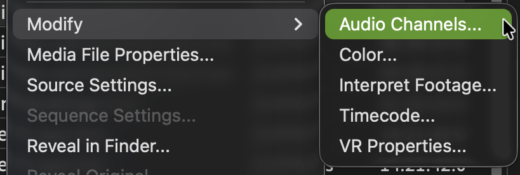
Before the version 26.3 update, editors who wanted to keep their timelines clean had to use a preventative workaround. Before editing any raw footage onto the timeline, they had to select their clips in the Project Panel, right-click, navigate to Modify > Audio Channels, and manually map the active source channels.
While effective, this workaround had major drawbacks:
It required editors to know exactly which audio tracks they needed before editing.
It added an extra step to the ingest process, slowing down fast-turnaround workflows.
If an editor later needed an audio channel they had disabled in the Modify menu, they had to go back into the menu, re-enable it, and perform a match-frame edit to recover the missing audio.
Step-by-Step Guide: Disabling Auto-Track Creation
For editors who want to regain total control over their timelines, disabling the auto-add feature is straightforward. The following step-by-step guide explains how to toggle this setting and how it changes the editing experience.
Step 1: Accessing the Timeline Preferences
On macOS: Navigate to the top menu bar and select Premiere Pro > Settings > Timeline.
On Windows: Navigate to the top menu bar and select Edit > Preferences > Timeline.
Step 2: Disabling the Toggle
Within the Timeline Preferences panel, locate the option labeled: Add tracks automatically when editing source clips onto the Timeline
Uncheck the box next to this option and click OK to apply the changes.
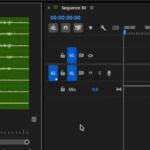
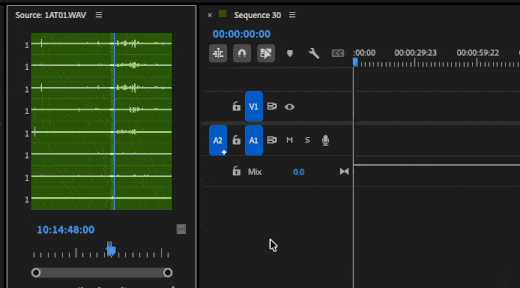
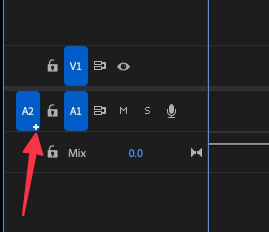
With this preference disabled, loading a source clip with more tracks than the timeline will no longer trigger automatic track creation. Instead, Premiere Pro will display a small "+" icon on the source side of the track patching area.
If you choose to perform a drag-and-drop or a three-point edit, Premiere Pro will only edit the channels that are mapped to existing timeline tracks. If you decide you do want to bring in those extra tracks, you can click the "+" icon to add them manually. This approach ensures that you are always in control of your timeline layout.
Community Reactions & Professional Perspectives
The introduction of the auto-track toggle was widely praised by the professional post-production community. It was seen as a victory for editor-led advocacy and a sign that Adobe was listening to its power users.
On platforms like Reddit’s r/editors, users celebrated the update as a major quality-of-life improvement:
Editor Persona
Workflow Impact
Key Benefit
Documentary Editor
Handles multi-track field audio (8-32 channels) on a daily basis.
Eliminates the need to constantly use the "Modify Audio Channels" menu during ingest.
Commercial Editor
Works with highly structured timeline templates with dedicated tracks for music, VO, and SFX.
Prevents imported stock footage or sound effects from breaking timeline layouts.
Assistant Editor
Responsible for preparing projects and keeping timelines organized for lead editors.
Saves hours of manual cleanup time when organizing multi-camera sync maps.
This update also highlighted a broader debate within the NLE landscape. While platforms like Apple’s Final Cut Pro have moved toward trackless, metadata-driven timelines (the "Magnetic Timeline"), applications like Adobe Premiere Pro and Avid Media Composer remain committed to traditional, track-based structures. For editors who prefer the precision of track-based editing, maintaining control over those tracks is essential.
Future Outlook: Automation vs. Agency in the Era of AI
The resolution of the auto-track controversy in Premiere Pro highlights a larger challenge facing software developers today: finding the right balance between automation and user control.
As video editing software increasingly incorporates machine learning and artificial intelligence—such as text-based editing, auto-ducking, and automated color matching—the risk of "NLE overreach" is higher than ever. While AI-driven features can save time on tedious tasks, they must not strip editors of their creative agency.
+-------------------------------------------------------------------------+
|                       THE DUALITY OF NLE DESIGN                         |
+-------------------------------------------------------------------------+
|                                                                         |
|      [ NOVICE / ACCESSIBILITY ]        [ PROFESSIONAL / GRANULAR ]      |
|      * Automated safety nets           * Manual track patching          |
|      * Intelligent defaults            * Explicit user permission       |
|      * Assistive AI features           * Customizable workspaces        |
|                                                                         |
|  =====================================================================  |
|  The Ideal Middle Ground: Powerful automations that are enabled by      |
|  default for accessibility, but can be fully disabled via deep preference|
|  toggles for professional workflows.                                    |
|                                                                         |
+-------------------------------------------------------------------------+
The solution implemented in Premiere Pro version 26.3 offers a model for future feature design:
Intelligent Defaults: Keep assistive features turned on by default to help beginners and casual creators.
Professional Toggles: Provide clear, easily accessible options in the preferences menu to disable these automations for advanced workflows.
Non-Destructive Indicators: Use visual cues (like the source-side "+" button) to let editors know that additional options are available without forcing them onto the timeline.
By adhering to these principles, software developers can build tools that are approachable for beginners while remaining powerful and reliable enough for the demanding environments of Hollywood, broadcast television, and high-end commercial post-production.