In the highly competitive landscape of post-production, transition friction between Non-Linear Editors (NLEs) remains one of the most significant bottlenecks for creative professionals. When veteran editors migrate from legacy platforms like Avid Media Composer to modern ecosystems like Adobe Premiere Pro, they frequently encounter a psychological and mechanical barrier: the "discoverability" gap. Because professional video editing relies heavily on deeply ingrained muscle memory, the perceived absence of a single niche timeline interaction can lead a transitioning editor to conclude that a new software suite is inefficient or incomplete.
A recent viral discourse within the post-production community on Reddit highlighted this exact phenomenon. An editor transitioning from Avid Media Composer expressed frustration over their inability to replicate a fundamental timeline operation. The ensuing discussion illuminated a broader industry challenge: many of the most powerful, time-saving editorial features are not represented by prominent on-screen buttons. Instead, they are hidden behind modifier keys and subtle cursor state changes.
Foremost among these hidden mechanisms is Premiere Pro’s Swap Edit feature. Equivalent to Avid’s yellow arrow "Segment Insert" mode, the Swap Edit allows editors to dynamically rearrange clips on a timeline without destructive overwriting or manual track gapping. This analysis explores the mechanics of the Swap Edit, evaluates the default timeline behaviors of Adobe Premiere Pro, examines the broader implications of UI discoverability in software design, and outlines how mastering these micro-operations directly impacts post-production efficiency.
Detailed Chronology: Timeline Manipulation and the Mechanics of the Swap Edit
To understand why the Swap Edit is such a critical tool for professional editors, one must first examine the hierarchical progression of timeline drag-and-drop operations in Adobe Premiere Pro. How an editor moves a clip from Point A to Point B dictates not only the speed of their rough cut but also the structural integrity of their entire sequence.
By default, Adobe Premiere Pro operates on an overwrite-centric model when executing simple mouse-drag operations.
The Action: Selecting a clip on the timeline and dragging it to a new position.
The Result: The dragged clip lands at the destination, completely obliterating and replacing any visual or audio media underneath it.
The Drawback: While highly predictable, this behavior is inherently destructive. If an editor wants to move a clip to an earlier position in a montage, a standard drag-and-drop will wipe out the surrounding content, requiring the editor to manually cut, ripple-delete, and paste to avoid losing work.
2. The Insert Modifier (Command on macOS / Control on Windows)
To avoid overwriting existing footage, editors often turn to the standard Insert modifier.
The Action: Holding down the Command key (Mac) or Control key (Windows) while dragging a clip.
The Result: Premiere Pro splits the timeline at the drop point, pushes all subsequent media down to the right, and inserts the clip.
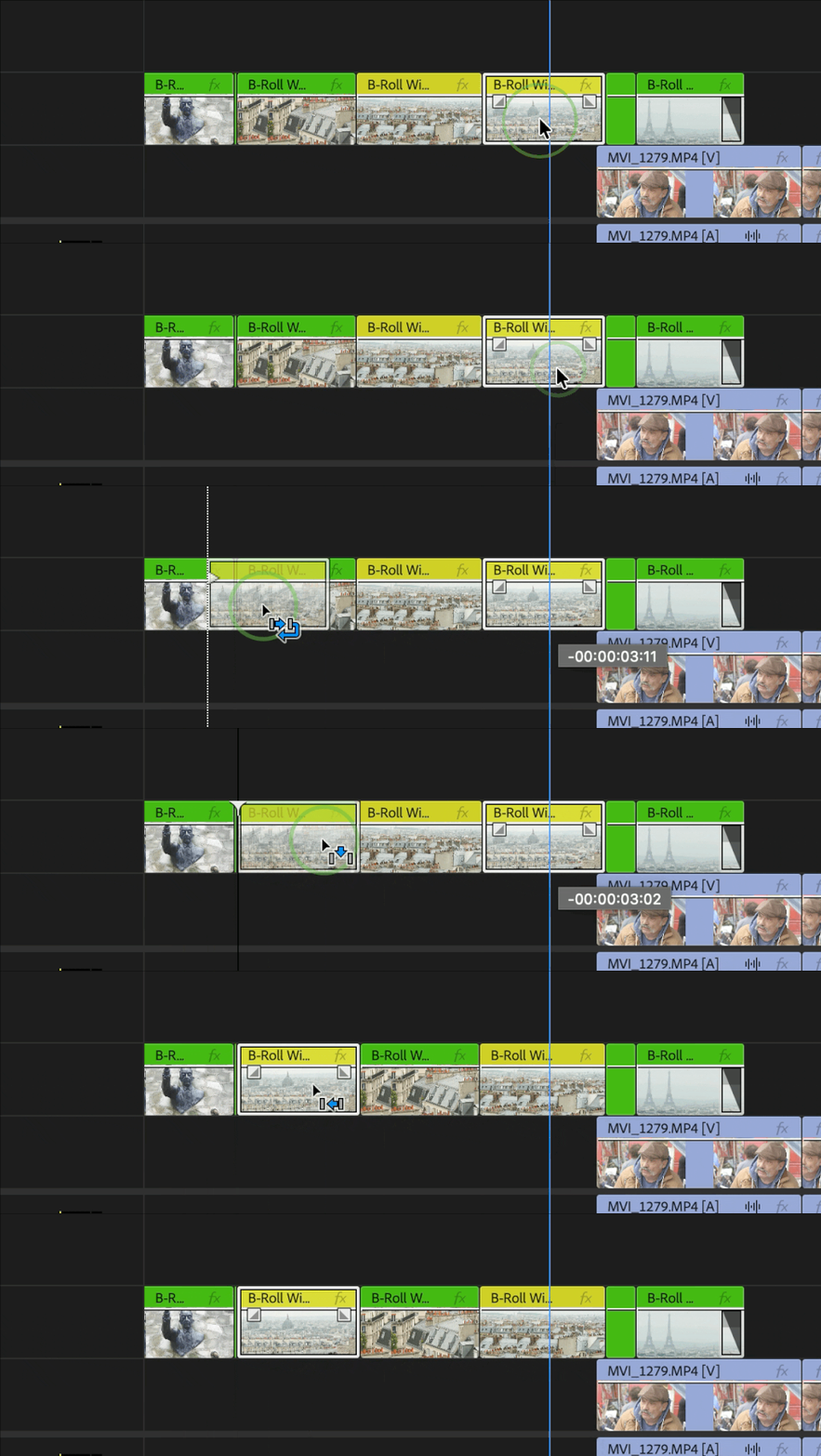
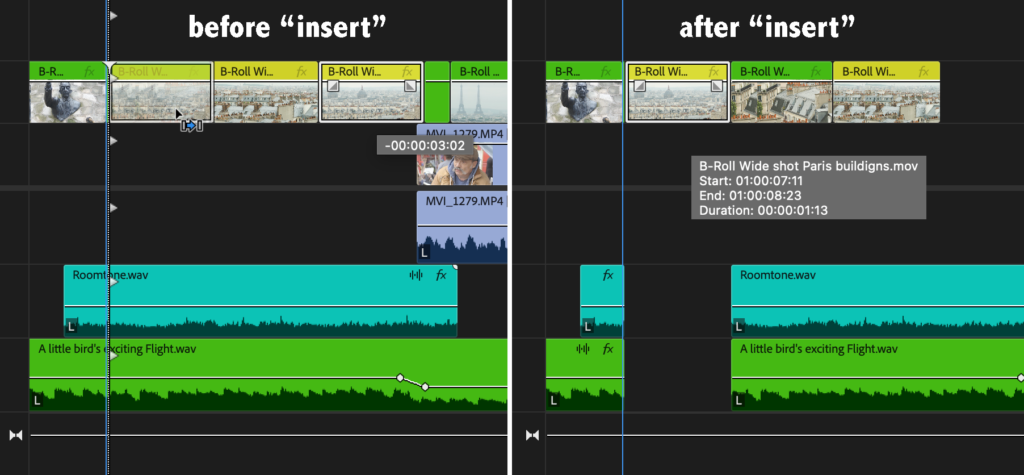
The Critical Flaw: While this protects the destination media from being overwritten, it introduces significant secondary complications. As illustrated in complex multi-track timelines, a standard insert force-ripples all tracks globally. This frequently creates massive, unintended gaps in unlinked audio tracks, sound effects, music beds, and B-roll layers further down the timeline, disrupting sync across the entire project.
3. The Duplication Modifier (Option on macOS / Alt on Windows)
In scenarios where versioning or compositing is required, duplication is the preferred method.
The Action: Holding down the Option key (Mac) or Alt key (Windows) before initiating the drag.
The Result: The original clip remains locked in its original position, while a perfect duplicate is generated at the new destination.
The Limit: This is highly effective for stacking clips to apply masks, effects, or color grading variations, but it does nothing to solve the problem of re-ordering a sequence of shots.
4. The Solution: The Swap Edit (Command + Option on macOS / Control + Alt on Windows)
The Swap Edit is the elegant resolution to the limitations of the previous three methods. It allows an editor to lift a clip from its current position, insert it at a new location, and automatically ripple-close the gap left behind—all in a single, fluid motion.
Step 1: Click and hold the target clip.
Step 2: Begin dragging the clip toward its new destination.
Step 3: Press and hold Cmd + Opt (Mac) or Ctrl + Alt (Windows).
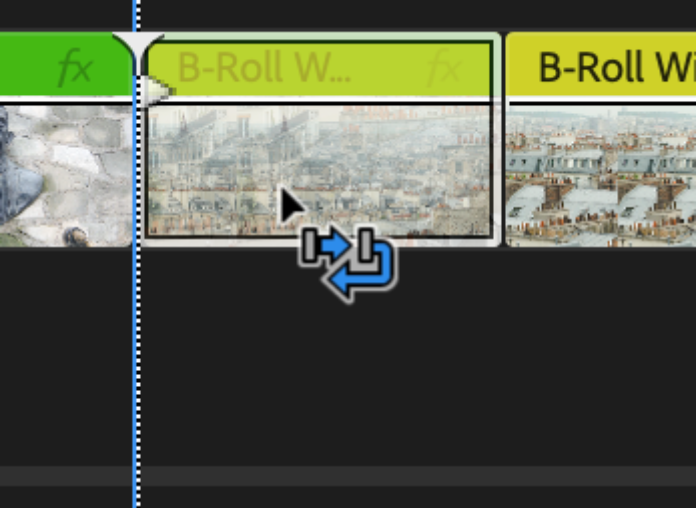
Step 4: Look for the "Hook Arrow" cursor overlay.
Step 5: Release the mouse button, then release the keys.
The Mechanics: The editor clicks and begins to drag the clip first, then holds down Command + Option (Mac) or Ctrl + Alt (Windows).
The Visual Cue: The standard cursor transforms into a distinct hook arrow icon.
The Execution: When dropped, the clip is inserted seamlessly at the edit point. Simultaneously, the gap left behind at the clip’s original location is automatically closed (ripple-deleted), maintaining the absolute duration of the timeline and keeping surrounding media intact.
The Track Constraint: Crucially, the Swap Edit is designed to function strictly on the same track. Attempting to drag the clip to a different track breaks the swap behavior, reverting the cursor to a standard insert icon. This design choice prevents accidental cross-track sync drift.
Supporting Context & Metrics: The Cost of Inefficiency in Post-Production
The significance of micro-features like the Swap Edit becomes clear when quantified across a professional editor’s daily workflow. In high-pressure environments—such as trailer houses, broadcast newsrooms, agency post-production suites, and reality television edit bays—efficiency is measured in seconds per minute of screentime.
The Mathematics of Editorial Friction
Consider a standard, fast-paced 60-second commercial spot containing roughly 40 to 50 individual cuts. During the fine-cut phase, a director or agency client may request dozens of structural adjustments to the sequence of shots (e.g., "Let’s see the close-up of the product before the wide shot of the actor").
Without Swap Edit (The Multi-Step Workflow):
Select the clip to be moved.
Cut the clip (Cmd+X).
Select the gap left behind and perform a Ripple Delete (Shift+Delete).
Navigate the playhead to the new insertion point.
Perform an Insert Paste (Cmd+Shift+V or toggle track targeting and paste).
Verify that no audio tracks on other layers were knocked out of sync.
Total Time Elapsed: ~15 to 30 seconds per swap.
Error Probability: High (risk of track misalignment or accidental overwrites).
For an editor making 100 structural shot adjustments over the course of an eight-hour editing session, the utilization of the Swap Edit translates to a direct time-saving of nearly 45 minutes of active editing time per day. Over a fiscal year, this micro-habit recovers over 180 hours of billable creative time that would otherwise be spent executing mechanical utility commands.
Metric / Workflow Attribute
Manual Cut & Paste Method
Swap Edit Modifier Method
Average Execution Time
15 – 30 Seconds
1.5 Seconds
Steps Required
5 – 6 steps
1 fluid drag-and-drop
Track Sync Risk
High (Requires manual track locking)
Low (Track-locked by default)
Cognitive Load
High (Interrupted creative flow)
Low (Intuitive physical gesture)
Professional Insights: Bridging the NLE Divide
The friction points surrounding the Swap Edit highlight a larger industry discussion regarding software design and editor onboarding. The transition from Avid Media Composer to Adobe Premiere Pro is a common path for editors moving from traditional broadcast and feature film environments into the commercial, digital, and corporate sectors.
Avid Media Composer’s interface relies on a highly segmented modal philosophy. Editors toggle explicitly between "Red Segment Mode" (Overwrite) and "Yellow Segment Mode" (Insert/Swap). This modal design forces the editor to make a conscious choice before touching the timeline.
In contrast, Adobe Premiere Pro features a more fluid, tool-agnostic interface. Rather than switching modes, Premiere Pro relies heavily on keyboard modifiers to alter the behavior of the standard selection tool on the fly. While this design allows for exceptionally fast editing once mastered, it creates a steep learning curve for new users because these features are practically invisible without targeted training.
Industry professionals emphasize that mastering these hidden modifier keys is essential to unlocking the true potential of modern editing software:
"The hardest part of adapting to a new editing platform isn’t learning where the buttons are; it’s unlearning the physical habits of your hands. When you find yourself thinking a software lacks a feature, it’s almost always a translation issue rather than a functional limitation. The Swap Edit is the perfect example of a feature that bridges the gap between Avid’s rigid precision and Premiere’s fluid speed."
Future Outlook: The Evolution of Timeline Interaction
As non-linear editing suites continue to mature, the way editors interact with media timelines is poised for further evolution. Software developers are increasingly tasked with balancing the deep, muscle-memory-based workflows of veteran professionals with the intuitive, frictionless interfaces demanded by a new generation of creators.
1. Contextual UI and Predictive Assist
Future iterations of Premiere Pro and competing NLEs are expected to move toward highly context-aware interfaces. Instead of relying solely on complex keyboard modifier combinations (which must be memorized), future timelines may utilize machine learning to predict an editor’s intent. For example, if an editor drags a clip over another of identical length, the software could automatically present a visual "Swap" overlay, eliminating the need to hold down multiple modifier keys.
2. Unified Industry Keymaps
As cross-platform workflows become the standard for post-production facilities, there is a growing push for unified keyboard and mouse interaction maps. While Premiere Pro currently offers built-in preset mappings for Avid Media Composer and Final Cut Pro keyboard layouts, these presets often struggle to map deep mouse-modifier behaviors like the Swap Edit. Future software updates may feature more robust, system-wide emulation profiles that translate not just keyboard shortcuts, but the physical mechanics of timeline dragging.
3. Conclusion
Ultimately, the power of professional video editing software lies in its ability to disappear beneath the editor’s fingers. Tools like the Swap Edit are critical because they reduce the physical and cognitive friction between a creative decision and its execution on the timeline. By dedicating the time to master these hidden mechanics, editors can transcend the limitations of simple button-clicking, transforming their editing suite from a digital workspace into a highly responsive extension of their creative mind.