







Executive Overview
In the high-stakes environment of modern digital media production, speed is no longer just an advantage—it is a baseline requirement. As post-production schedules compress and deliverables multiply across a diverse array of platforms, video editors face a persistent bottleneck: the rendering and exporting phase. For years, the traditional export pipeline required navigating complex, multi-layered menus, configuring intricate codec settings, or sending compositions to external queue managers like Adobe Media Encoder. While highly customizable, this heavyweight process frequently disrupted the creative momentum of editors who simply needed to generate rapid draft reviews, social media cuts, or client-approved proxy files.
To address this friction point, Adobe integrated the "Quick Export" engine directly into the primary editing workspace of Premiere Pro. Positioned unobtrusively in the upper right-hand corner of the application header, Quick Export serves as a bridge between structural timeline editing and rapid asset delivery. Rather than replacing the comprehensive control of the dedicated Export Mode, Quick Export streamlines the delivery pipeline, allowing editors to bypass deep menus and output high-quality files with as few as two clicks.
This investigative analysis explores the operational mechanics of Premiere Pro’s Quick Export ecosystem, traces its development alongside Adobe’s broader workspace modernization initiatives, examines the technical underpinnings of the Preset Manager, and provides actionable metrics on how mapping unmapped keyboard shortcuts can yield significant compounding time savings for professional post-production houses.
Detailed Chronology: The Evolution of the Premiere Pro Export Engine
The path to Premiere Pro’s current streamlined export capabilities is marked by shifting user experience (UX) philosophies and changing industry demands. Understanding this trajectory reveals how Quick Export transitioned from a luxury convenience to an essential component of professional editing workflows.
[Legacy Export Dialog (Cmd/Ctrl + M)]
              │
              ▼
[Dedicated Export Mode / Workspace]  ───► [Premiere Pro Beta: Contextual Color/Audio Modes]
              │
              ▼
[Quick Export Integration (Header UI)] ───► [Customized Preset Manager & Hardware Acceleration]
Phase 1: The Legacy Export Dialog Era (CS6 to CC 2021)
For over a decade, exporting in Premiere Pro was dominated by the classic Export Settings dialog box (accessed via Cmd+M on macOS or Ctrl+M on Windows). While incredibly robust, this modal window paused the entire application interface. Editors were forced to wait for the dialog to load, manually adjust source and output scaling, scroll through exhaustive format lists (ranging from ancient wrappers to modern MXFs), and configure audio channels. For quick daily review cuts, this process was excessively complex and prone to user configuration errors.
Phase 2: The Redesigned Export Mode and Workspace Unification (2022)
Recognizing that the traditional dialog box felt disconnected from modern app design, Adobe introduced a radical visual overhaul. The export process was integrated directly into the main application frame as "Export Mode"—a dedicated tab alongside "Import" and "Edit." This change allowed editors to easily toggle between their timeline and a full-screen export preparation interface. It also introduced specialized publishing targets, enabling direct uploads to platforms like YouTube, Vimeo, Frame.io, and Behance.
Phase 3: The Introduction of the Quick Export Button
While the full-screen Export Mode solved the issue of visual clutter, it still required switching away from the active timeline workspace. To address this, Adobe engineers introduced the "Quick Export" button in the top-right header bar. This compact utility brought the power of the core rendering engine directly into the editing workspace. For the first time, editors could output a file without losing sight of their timeline, project bins, or source monitors.
Phase 4: Integration with Modern Beta Workspaces (Present)
Today, Quick Export coexists with Adobe’s ongoing interface refinements, such as the new "Color Mode" currently undergoing testing in the Premiere Pro Beta. As Adobe continues to transition from rigid workspaces to fluid, context-driven design modes, Quick Export remains a persistent, reliable anchor in the UI header. This ensures that regardless of whether an editor is deep-diving into color grading, audio mixing, or effects compositing, the path to final file generation remains open and immediate.
Supporting Context & Metrics: Maximizing Efficiency with the Preset Manager
At its core, the utility of Quick Export is defined by its speed, but its versatility is driven by the underlying Preset Manager. Far from being a rigid, "one-size-fits-all" button, Quick Export leverages Adobe’s deep preset architecture to deliver highly tailored outputs.
Navigating the Quick Export Interface
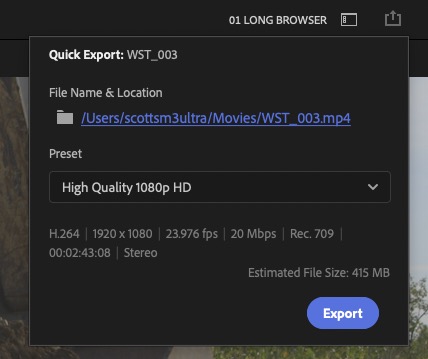
When an editor clicks the Quick Export icon, a compact overlay appears. The interface is intentionally minimalist, featuring three primary fields:
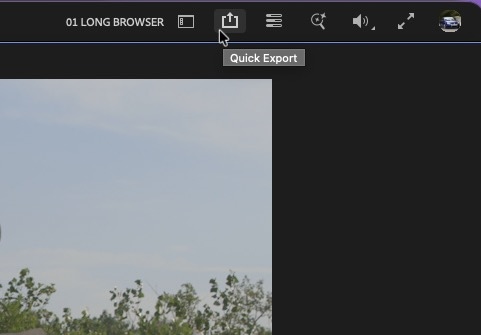
- File Name: A text field that defaults to the active sequence name, allowing for instant renaming.
- Location: A destination path selector with a directory shortcut button.
- Preset: A dropdown menu populated with standard system presets (such as H.264 Match Source at various bitrates) alongside user-defined custom presets.
For basic draft exports, an editor can simply verify the destination path and hit "Export." The render begins immediately, showing a clean progress bar within the same overlay.
+-------------------------------------------------------------+
| Quick Export                                                |
+-------------------------------------------------------------+
| File Name: [ Sequence_01_Draft_v1                       ]   |
| Location:  [ /Volumes/RAID/Projects/Exports/            ]   |
| Preset:    [ Match Source - Adaptive High Bitrate     v ]   |
+-------------------------------------------------------------+
|                                  [ Cancel ]  [ Export ]     |
+-------------------------------------------------------------+
Unleashing the Preset Manager
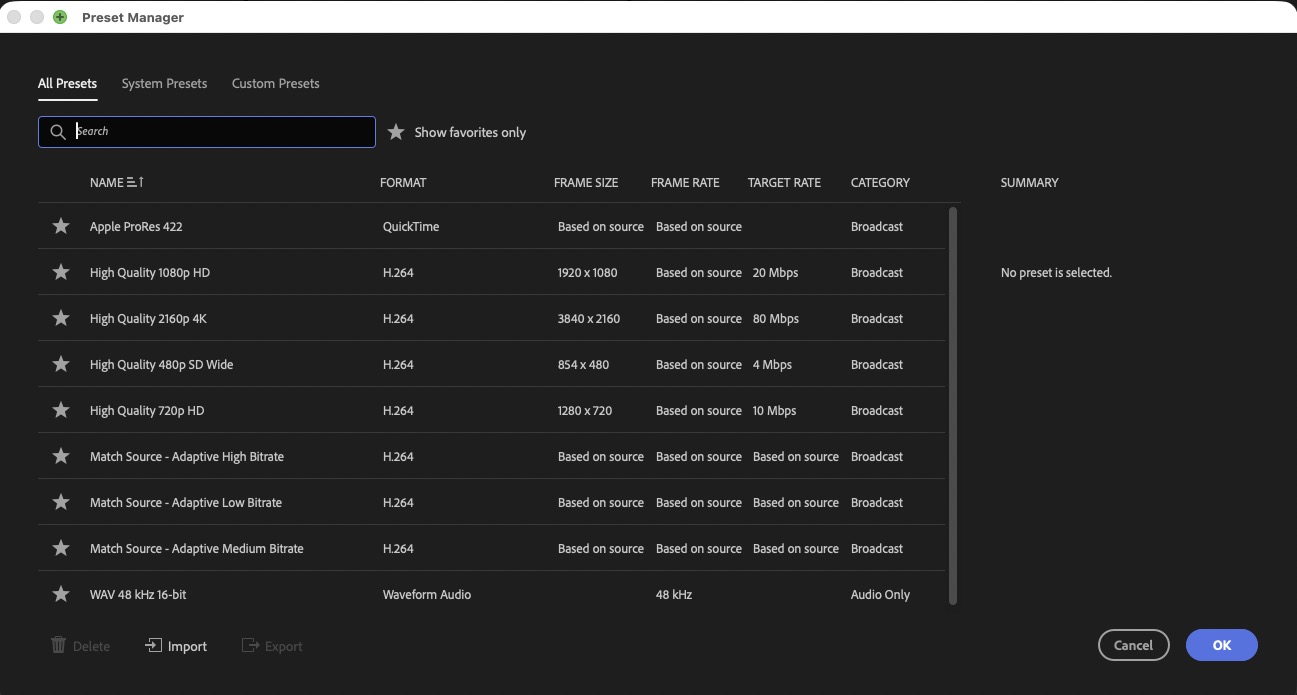
For professional workflows, the standard system presets are rarely sufficient. Different clients, broadcasters, and social platforms require specific wrappers, bitrates, audio layouts, and color space transformations. By clicking on the Preset dropdown and selecting "More Presets…" at the bottom of the list, editors can access the comprehensive Preset Manager.
The Preset Manager serves as the control center for Quick Export customization:
- Search and Filter: Editors can search through hundreds of system-provided presets tailored for VR, mobile, broadcast, and web publishing.
- Favoriting (The "Star" System): By clicking the star icon next to any preset, it is instantly added to the main Quick Export dropdown list. This allows editors to curate a lean, highly relevant list of 3 to 5 frequently used outputs, eliminating the need to scroll through irrelevant options.
- Importing Custom Presets: Editors can import
.eprfiles created in Adobe Media Encoder or standard Premiere Pro Export Mode. This ensures that complex configurations—such as custom watermarks, timecode burn-ins, loudness normalization standards, or lut overlays—are accessible via the Quick Export button. - Exporting Presets: Lead editors or post-production supervisors can configure a standardized export profile, export the
.eprfile, and distribute it to an entire team of assistant editors. This ensures consistent deliverables across the entire production pipeline.
| Metric / Workflow Attribute | Traditional Export Mode | Quick Export Utility |
|---|---|---|
| Average Clicks to Launch | 3 – 4 clicks (or Cmd+M menu load) |
1 click (or keyboard shortcut) |
| Workspace Disruption | High (switches entire UI panel layout) | None (retains active timeline focus) |
| Custom Preset Support | Unlimited (full configuration access) | High (via imported .epr favorites) |
| Batch Queueing Support | Yes (direct handoff to Media Encoder) | No (single active sequence rendering) |
| Ideal Use Case | Final masters, complex multi-cam deliverables | Rough cuts, client approvals, social drafts |
The Ultimate Speed Hack: Mapping the Keyboard Shortcut
While clicking a button in the top-right corner is fast, moving the mouse to the top of the screen repeatedly can slow down a high-volume editor over the course of a long day.
By default, the Quick Export command does not have a mapped keyboard shortcut in Premiere Pro’s standard layout. However, editors can easily assign one:
- Navigate to Edit > Keyboard Shortcuts (or
Cmd+Opt+Kon macOS /Ctrl+Alt+Kon Windows). - In the search bar of the Keyboard Shortcuts dialog, type "Quick Export".
- Locate the command under the Application category.
- Drag and drop a desired key combination (such as
Shift+EorCtrl+Shift+Q) onto the command. - Click Save.
By mapping this shortcut, an editor can instantly trigger the Quick Export overlay from any panel, type a quick revision tag, and hit Enter to render—all without ever touching the mouse.
Official Statements and Industry Perspectives
The development and refinement of Quick Export represent a deliberate effort by Adobe’s product teams to address the changing demands of modern video professionals.
In public documentation, feature release notes, and community forums, Adobe product managers have consistently emphasized that Quick Export is designed to reduce "time-to-first-frame" of output. The primary design goal was not to replace the heavy-duty rendering options found in Adobe Media Encoder, but rather to eliminate unnecessary UI navigation for the vast majority of day-to-day exports.
According to product developers, feedback from creative agencies highlighted a common pain point: editors were losing focus when forced to leave their editing workspace just to share a quick 10-second rough cut with a director or copywriter. By introducing a lightweight export option that lives inside the main timeline interface, editors can maintain their creative flow.
Professional editors and workflow consultants have also embraced this hybrid approach. In reviews across major post-production publications, industry experts note that while the full Export tab remains necessary for generating final, high-fidelity broadcast packages and archival masters, Quick Export has become the go-to tool for sending daily progress updates to review platforms like Frame.io.
Future Outlook: AI, Cloud Integration, and the Next Era of Delivery
As Premiere Pro continues to evolve, the Quick Export tool is positioned to become even more deeply integrated with emerging cloud and machine learning technologies.
[Timeline Active]
       │
       ▼ (Shortcut Trigger)
[Quick Export Engine]
       │
       ├─► [Local Hardware Acceleration (Apple Silicon / NVIDIA NVENC)]
       │
       ├─► [Adobe Sensei: Intelligent Bitrate & Aspect Ratio Correction]
       │
       └─► [Direct Cloud Uplink: Frame.io / Social Platforms]
Deepening Frame.io and Cloud Workflows
With Adobe’s acquisition and deep integration of Frame.io, the demand for fast, cloud-enabled uploads has increased significantly. Future iterations of Quick Export are expected to feature tighter integration with cloud-based active review links. Editors will be able to trigger a Quick Export that automatically renders in the background and uploads directly to a specific Frame.io presentation folder, instantly notifying stakeholders without requiring any further action from the editor.
Intelligent, AI-Assisted Rendering
Through Adobe Sensei (Adobe’s artificial intelligence framework), Quick Export is poised to become smarter. Future versions may feature intelligent auto-detection of timeline content. For instance, if the engine detects that a sequence is formatted for a 9:16 aspect ratio, it could automatically prioritize vertical social media presets. Similarly, AI-driven bitrate optimization could analyze the visual complexity of a timeline to compress files more efficiently, reducing upload times without compromising perceived visual quality.
Expanded Hardware Acceleration
As GPU manufacturers like NVIDIA, AMD, and Apple continue to update their dedicated hardware encoding engines (such as NVENC and Apple Silicon Media Engines), Premiere Pro’s Quick Export will continue to benefit from hardware-accelerated encoding. This will make rendering popular codecs like H.264 and HEVC (H.265) nearly instantaneous, even when working with high-resolution 4K and 8K source footage.
Ultimately, tools like Quick Export demonstrate that true workflow optimization is not just about raw computing power—it is about designing elegant, intuitive user interfaces. By removing unnecessary steps from the export process, Premiere Pro allows editors to spend less time managing software settings and more time focusing on their creative work.